
TALKAI TUTOR GUIDE
TalkAI Tutor
How to use
From language settings to conversation review. Follow each step in the app.
Choose a language


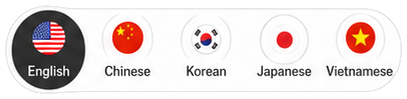
Guide illustrations redrawn from the app
Start with the three bottom tabs


Contents · Language and level
Language and level
Choose a language and a starting level.
Lessons›Settings
-
01
Lessons
Tap the open-book tab at the bottom of the screen.
-
02
Settings
Tap the gear in the top-right corner of the lesson screen.
-
03
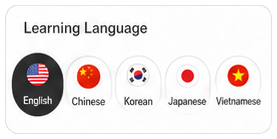
Learning Language
Scroll down to Learning Language and tap the language you want to learn.
-
04
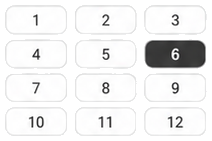
Learning level
Scroll further down and choose a level. Read the sample sentences above it first.
-
05

Take a Level Test
Tap Take a Level Test if you are unsure which level to choose.
-
06

Back
Tap the top-left arrow to return. Your selection is saved automatically.
Study several languages
Switch languages without losing each language’s progress.
Lessons›Settings›Learning Language
-
01
Lessons
Tap the open-book tab at the bottom of the screen.
-
02
Settings
Tap the gear in the top-right corner of the lesson screen.
-
03
Learning Language
Choose another language here. Returning to a language restores its own level and progress.
-
04
Back
Tap the top-left arrow to return. Your selection is saved automatically.
-
05

Learn
Tap Learn in the chapter you are currently studying.
-
06
Learning Language
Choose another language here. Returning to a language restores its own level and progress.
Start a conversation lesson
Listen, speak, answer quizzes and use the expressions in conversation.
Lessons›Learn
-
01
Lessons
Tap the open-book tab at the bottom of the screen.
-
02

Overview
Tap Overview to read what the current chapter covers.
-
03
Learn
Tap Learn in the chapter you are currently studying.
-
04
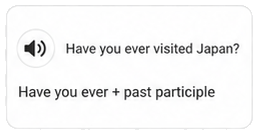
Listen and repeat
Listen to the sentence and explanation. When prompted, say the sentence out loud.
-
05
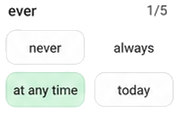
Quiz
Choose an answer to the quiz. During conversation practice, answer using the expressions you learned.
-
06
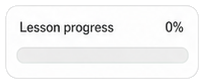
Lesson progress
Return to the lesson screen after studying and check the chapter progress.
Start a free conversation
Choose a topic and roles, then answer your tutor.
Free Talk›Topic and roles›Start
-
01
Free Talk
Tap the microphone tab at the bottom of the screen.
-
02

Beginner
Choose Beginner, Intermediate or Advanced.
-
03

With Avatar
Choose With Avatar to see the tutor, or Voice Only for voice conversation.
-
04
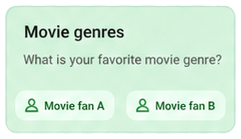
Topic and roles
Choose a topic and read the situation and both participants’ roles.
-
05

Start
Tap Start on the topic card to begin.
-
06

Input mode
The upper microphone selects automatic mode. The lower finger icon selects manual mode.
-
07
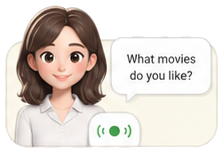
Answer the tutor
Listen to the question, then speak when the app is listening. In automatic mode, your answer is sent when you finish speaking.
Summarize a conversation
Close only the avatar panel, then open the conversation tools.
Close the avatar›Conversation tools›Summarize
-
01

Close the avatar
Wait until the tutor finishes, then tap X on the avatar panel. Do not use the conversation screen’s back arrow.
-
02
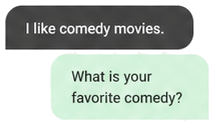
Conversation history
Your conversation is now shown as text. Stay on this screen.
-
03

Conversation tools
Tap the flame icon in the toolbar below the conversation.
-
04

Summarize
Swipe the bottom tools to the left, find Summarize, and tap it.
-
05
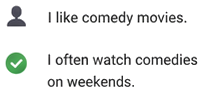
Read the summary
Read the summary and the suggested improvements to your sentences.
-
06

Chat Summary
Open Chat Summary on the Free Talk home screen to read saved summaries. This button appears when a summary is available.
Save words from a conversation
Extract words, check their meanings and choose a word list.
Close the avatar›Conversation tools›Create Vocabulary
-
01
Close the avatar
Wait until the tutor finishes, then tap X on the avatar panel. Do not use the conversation screen’s back arrow.
-
02
Conversation tools
Tap the flame icon in the toolbar below the conversation.
-
03

Create Vocabulary
Tap Create Vocabulary to extract words from the conversation.
-
04
Save
When extraction finishes, tap Save. This opens the word list; you still need to choose where to save it.
-
05
Meaning and pronunciation
Tap a word card to check its pronunciation and meaning.
-
06

Save words
Tap the floppy-disk save icon at the bottom right of the word list.
-
07

Choose a word list
Tap the checkmark beside the word list you want to save into.
-
08

Add Group
If you need a new word list, tap Add Group. Otherwise, skip this step.
-
09

Please enter a group name.
Enter a name and tap the checkmark. Then tap the checkmark beside the new list once more to save your words.
Make an audiobook from a photo
Turn a photographed page into audio.
Tools›Make audiobook
-
01
Tools
Tap the four-square tab at the bottom of the screen.
-
02
Make audiobook
Scroll down in Tools and open Make audiobook.
-
03

Add an audiobook
Tap the + button at the bottom right of the audiobook list.
-
04

Camera
Choose Camera to take a photo, or Gallery to use a saved image.
-
05

Crop the photo
Move the crop handles so only the text you need remains clearly visible.
-
06

Confirm the crop
Tap the checkmark at the top right to extract the text from your photo.
-
07

Generate
When the text appears in the list, tap Generate on its right.
-
08

Listen
When the audio is ready, the button changes to Listen. Tap it to listen.
Review words with SRS
Review unfamiliar words sooner and familiar words less often.
Tools›Study List›Start study
-
01
Tools
Tap the four-square tab at the bottom of the screen.
-
02

Study List
Open Study List in the word-learning card near the top of Tools.
-
03

Start study
Tap Start study to review words that are due.
-
04
Recall the meaning
Look at the word and try to recall its meaning before revealing the answer.
-
05

Checking
Tap Checking to reveal the meaning.
-
06
How well did you remember?
Choose how well you remembered the word. Your answer determines when it appears again.
Make your own workbook
Use a photo of a menu or notice to create sentences and vocabulary.
Tools›My workbooks›Make Textbook
-
01
Tools
Tap the four-square tab at the bottom of the screen.
-
02
My workbooks
Scroll down in Tools and open My workbooks.
-
03
Make Textbook
Tap the magic-wand button marked Make Textbook at the bottom right.
-
04

Choose a photo
Check the learning language in the creation window, then tap the camera icon.
-
05

Camera
Choose Camera to take a photo, or Album for a saved image.
-
06
Crop the photo
Move the crop handles so only the text you need remains clearly visible.
-
07

Request
Check the selected photo, then tap Request. Wait for the workbook to finish.
-
08

Open your workbook
Open the completed workbook. You can return to it later by tapping its title in the workbook list.
-
09
Speaking
Read the sentences and their meanings. Tap Speaking to practice saying them.
Make a word list from an image
Extract vocabulary from a textbook photo or a saved screenshot.
Tools›Manage Word List›Words from a photo
-
01
Tools
Tap the four-square tab at the bottom of the screen.
-
02

Manage Word List
Open Manage Word List in the word-learning card at the top of Tools.
-
03

Words from a photo
Tap the red photo icon at the bottom right of the word-list groups screen.
-
04

Chinese
Choose the language for the words you want to create. Choose English for an English word list.
-
05

Take a photo
Choose Take a photo for a new photo, or Select from the album for a saved screenshot.
-
06
Crop the photo
Move the crop handles so only the text you need remains clearly visible.
-
07

Save
Tap Save when extraction finishes. In the list that opens, tap a word to check its meaning.
-
08
Save words
Tap the floppy-disk save icon at the bottom right of the word list.
-
09
Choose a word list
Tap the checkmark beside the word list you want to save into.
Add words by category
Choose vocabulary for restaurants, travel, school and other topics.
Tools›All Vocabulary›Word categories
-
01
Tools
Tap the four-square tab at the bottom of the screen.
-
02

All Vocabulary
Open All Vocabulary under the quick learning tools.
-
03

Word categories
Scroll down to the word categories and tap the arrow beside the topic you want.
-
04
English
Tap the download button for the language you want in the selected word collection.
-
05
Save words
Tap the floppy-disk save icon at the bottom right of the word list.
-
06
Choose a word list
Tap the checkmark beside the word list you want to save into.
Raise your Praise Grape level
Collect stickers and earn more daily conversation time.
Tools›My Rewards
-
01
Tools
Tap the four-square tab at the bottom of the screen.
-
02
My Rewards
Scroll down to My Rewards and tap View Details.
-
03

Earn stickers
Earn praise and hearts through lesson quizzes, speaking practice and conversation missions. 300 praises or 100 hearts give you one grape sticker.
-
04

Number of Grape Stickers
Check the sticker counter below the grape board. You need an available sticker to fill an empty slot.
-
05

Place a sticker
Tap an empty grape slot to place a sticker.
-
06

Fill 30 slots
Fill all 30 slots to raise your Praise Grape level. Each level adds 2 minutes of normal voice or 1 minute of lifelike voice per day.
More daily conversation time at each level
Each level adds 2 minutes of normal voice or 1 minute of lifelike voice per day.
| Level | Normal voice | Lifelike voice |
|---|---|---|
| 1 | +2 min / per day | +1 min / per day |
| 5 | +10 min / per day | +5 min / per day |
| 10 | +20 min / per day | +10 min / per day |